Add screen recording B-roll to a product demo
Show the click and the result while the presenter keeps talking. Use your screen recording as a cutaway, check whether important controls survive the crop, then review that moment in the finished edit.
Test your framingCheck the action and result in the delivery frame
Use the sample or open a screenshot from your recording. Mark the control the viewer needs to see and the part of the screen that changes.
Source screenshot
Public Valmera docs · 1920 × 1080
Framing preview
0 of 2 markers in frame · 32% of source width and 100% of source height visible
This preview checks positions on one still. Review moving footage and caption placement in the final edit. Selected screenshots stay in this browser.
Review the generated editing brief
Use my screen recording as B-roll in the 9:16 edit. Begin in time to show the cursor reach the control and hold through the first visible result.

Use separate closer views for the click and its result, or fit the full screen when both need to be visible together.

Keep my narration running, mute the screen recording, and leave the result on screen long enough to read. Position captions clear of the action and result. Show a preview before exporting.
Editing in Studio requires a subscription.
A good cutaway shows enough to repeat the action
- Start on the setup.
- Show the pointer arrive at the button or menu while the presenter names the step. Give the viewer enough context to locate it.
- Hold on the visible result.
- Show the confirmation, changed field or destination page. For a long wait, trim the gap and keep a beat on each side so the sequence is easy to follow.
- Use separate framings when two things are far apart.
- A single wide screenshot can fit inside a vertical video and still be too small to read. Try a close shot of the control, then a cut to the part of the screen that updates.
- Keep the narration clean.
- A cutaway switches the picture while the presenter keeps talking. When a notification or interface sound is essential, give it a separate slot and listen across the join.
Review a real click in the original screen capture
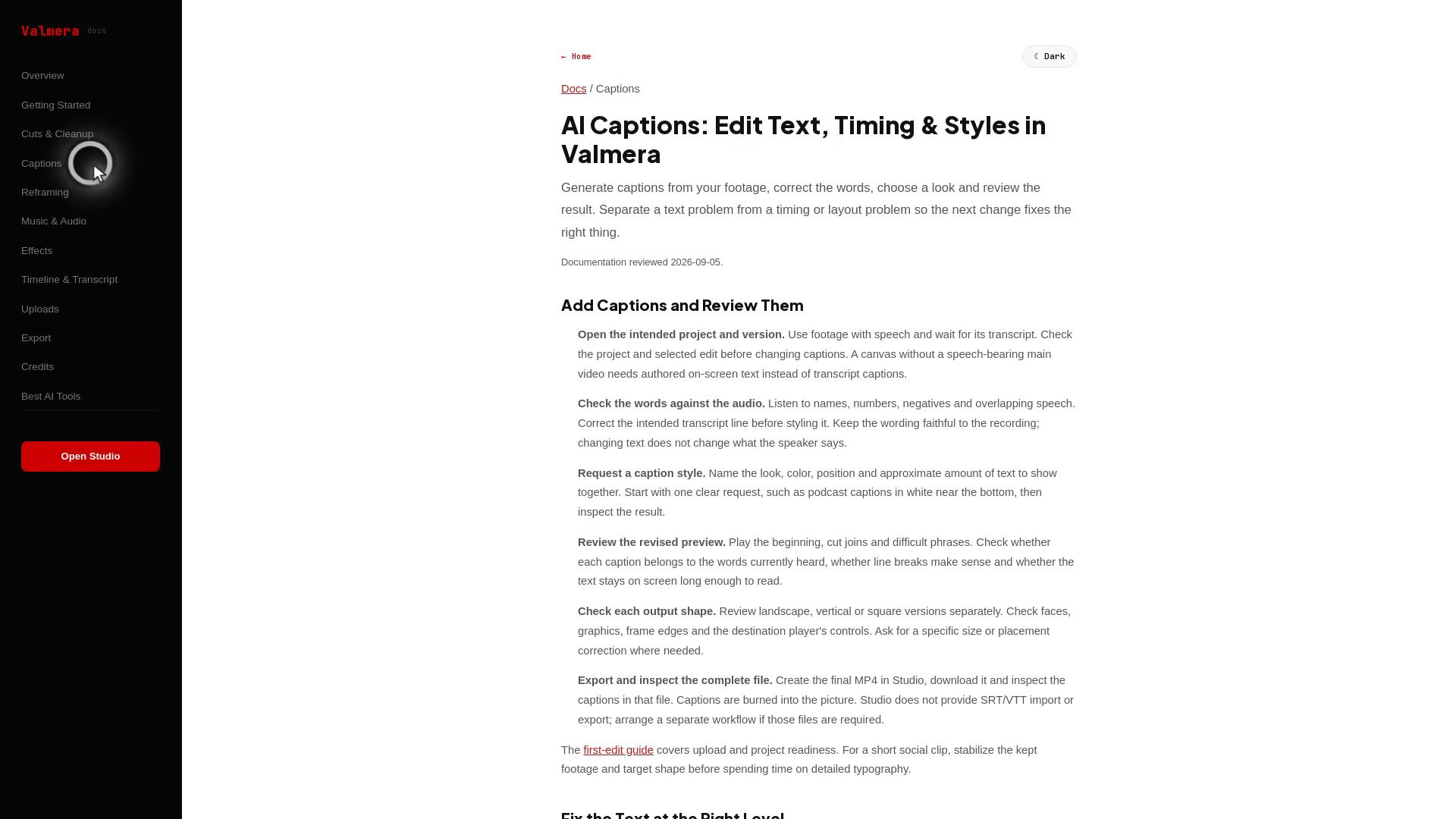
At about 3.6 seconds the cursor reaches Captions in the left sidebar and the destination heading appears across the page. The two markers in the framing preview show why a single tight vertical crop misses part of that moment.
This is a silent website recording made using Valmera’s browser capture workflow. Compare two cuts from this recording to see what happens when the click gets trimmed.
Test an editor on one real step before buying
Give it a short presenter take and the matching screen recording. Ask for one cutaway with unbroken narration, then ask for a tighter crop without losing the result. Play the revised MP4 once with sound and once without. Check the longest caption and smallest button label on your phone.
Editing several demos a month? Tell Valmera Enterprise what your team ships and which versions you need for each release.
Discuss recurring demo editing