Website-to-video tools compared
A product demo has to show what someone clicked and what happened next. Here is how to choose a website recorder, then test whether the exported MP4 teaches the action.
Choose by what the recording needs to do
Valmera publishes this comparison. The other workflows are based on vendor documentation reviewed November 24–25, 2026. The recorded example comes from Valmera’s public docs.
RecordHTML
Record a page that animates on its own. Set the viewport, recording length and start delay. The documented website capture records what the page itself plays in a fresh browser. It does not scroll or click, so this linked-page test requires an animated or self-playing sequence you prepare first.
Read the RecordHTML workflowScreenify Studio
Script the exact browser actions. Give the CLI a URL and a JSON action list. Its web recorder applies cursor smoothing, zoom and idle trimming, with controls to turn those off. It needs local helper setup. Confirm that automated trimming leaves enough time to read the destination.
Read the Screenify Studio workflowNextDemo
Rerun a demo on your own machine or CI runner. An agent writes the Playwright script. NextDemo films the browser viewport and renders the MP4 locally. Keep the script with the app and rerun it after a release. Budget time to update the locator if the control moves or changes name.
Read the NextDemo workflowVoilà
Keep a local recording recipe with the handoff. The open-source recorder scripts actions in its own Chromium browser and can put the recipe in the exported MP4. Keep the original file and a separate copy of the script, then rerun it against an approved demo environment when the interface changes.
Read the Voilà workflowAclipA
Maintain a narrated demo, a guide and a test from the walkthrough. AclipA documents an editable action and narration script, an MP4 export, a screenshot guide and automated tests. For a changing site, ask for one release-update trial and review the video, guide and test independently.
Read the AclipA workflowTella Auto Capture
Film a publicly reachable web app from a written task. Tella documents an agent that explores the page and records a take in a cloud browser. It can use a dedicated demo login for a reachable app. The take is silent and can be placed into the Tella editor for revision.
Read the Tella Auto Capture workflowDemoReady
Start from a URL and get a narrated draft. The vendor describes an AI director that explores the site, proposes stories and records the one you choose. It advertises scene narration, automatic removal of slow loads, and a 1080p MP4. Check that it follows the exact action you asked for before reviewing the narration.
Read the DemoReady workflowClickCast
Make a narrated launch explainer or animate ordered app screenshots. Its product demo guide describes capture from a public URL and a drafted voiceover. The documented Screenshot-Based mode takes up to seven screenshots in your chosen order and exports a 16:9, 1080p MP4. If buyers must reproduce a click, verify that the MP4 shows the actual interaction before you choose the workflow.
Read the ClickCast workflowValmera
Record a public walkthrough and refine it as a video edit. Provide a public URL and list the actions to record, or start with your own screen recording. Ask for a focused change to the cut, framing or cursor emphasis before export. AI editing requires a subscription.
Read the Valmera workflowChoose the capture environment first. For an app that runs only on your machine, use a local browser recorder or upload a screen recording from a demo workspace. For a public staging URL, give a cloud recorder the exact task and the final screen you need to show. Use sample data for both.
When does a screenshot demo need a recording?
Use an ordered screenshot tour when the audience needs an overview of what changed. Record the interaction when the audience needs to repeat a task. Give the viewer time to identify the control, see the click and read the resulting screen. Test the flow from demo data when it is behind sign-in.
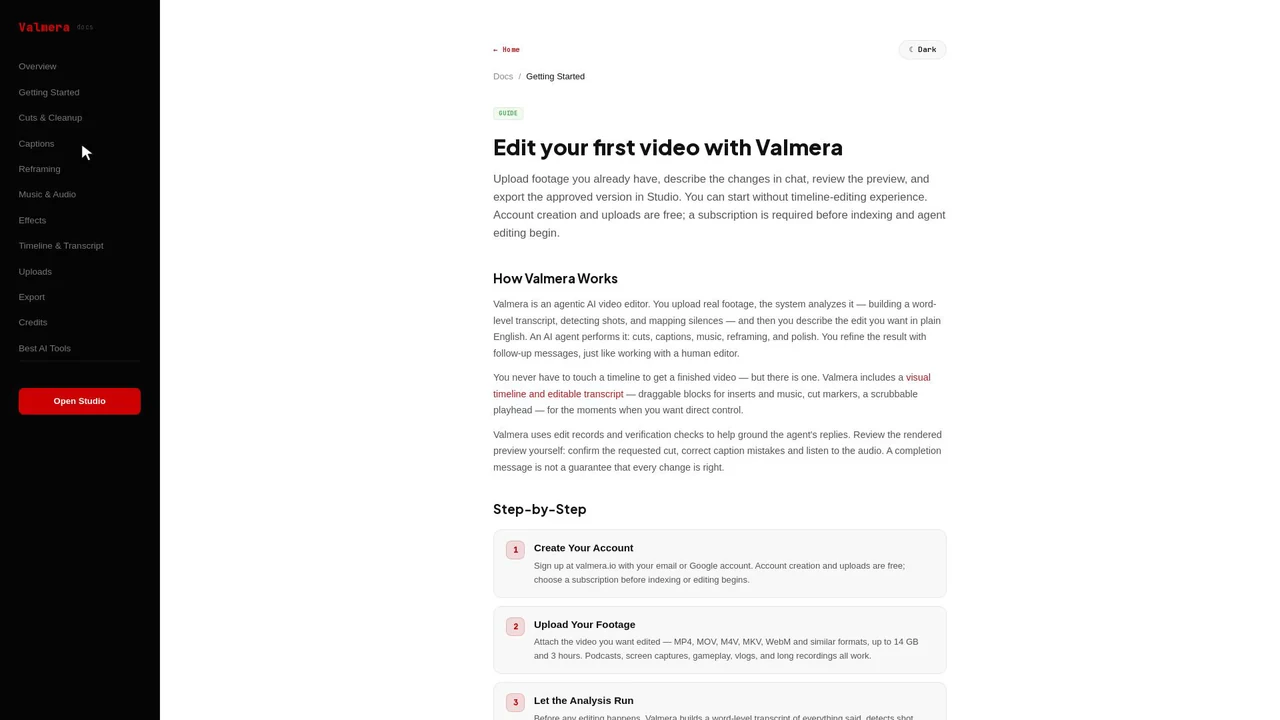
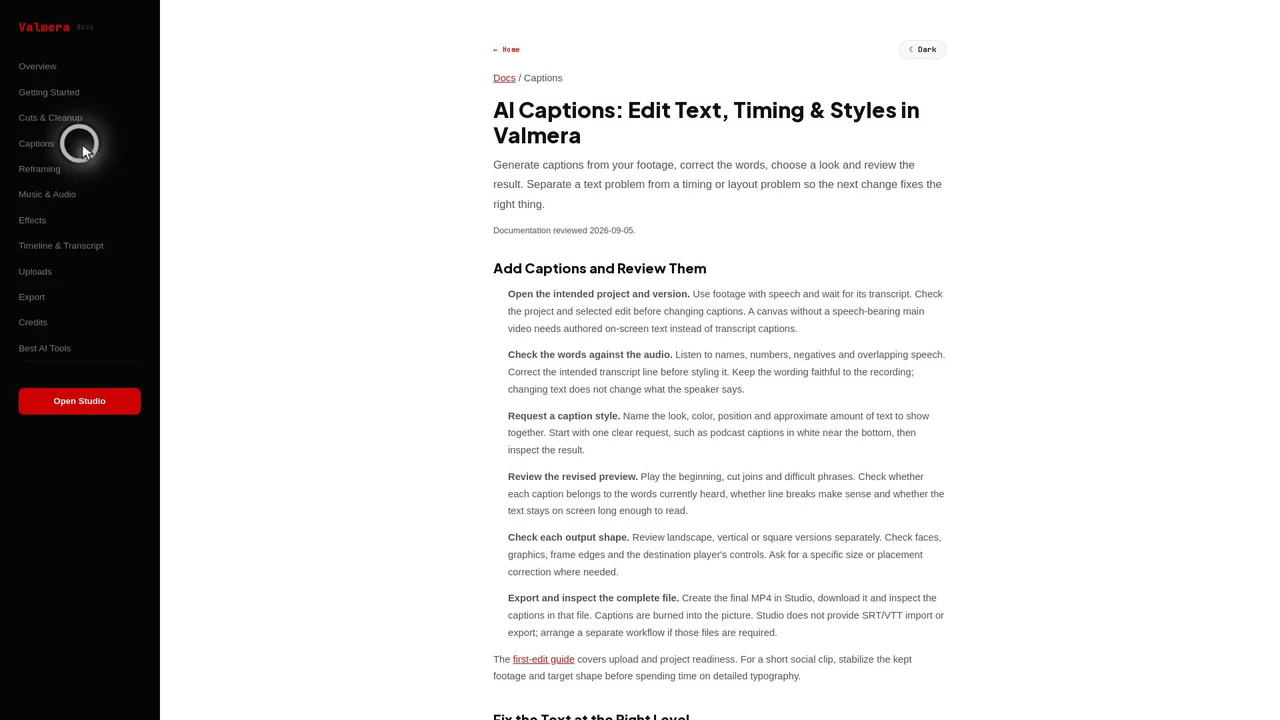
The Valmera recorder logged the click at 3.57 seconds. The stills show where the pointer began and where the viewer landed. Play the recording below to inspect how the two screens connect.
Run the same click test in each tool
Use this public, signed-out workflow as a short trial. If the tool takes a script, translate the same actions into its format. Record the steps you had to perform yourself and the plan you used.
Open the Captions guide from the sidebar
Open https://valmera.io/docs/getting-started at a desktop viewport. Start with the docs sidebar visible. Move the pointer to the Captions link, click it, and hold on the Captions page heading. Scroll once after the heading is visible. Record the pointer, the click and the resulting page in one landscape clip. Keep the heading legible and show me the exported MP4.
Studio saves the request as a draft for you to review. Use your own URL or screen recording to test a real release.
For a revision, shorten the opening wait while keeping the pointer approaching the link, the click and a readable hold on the new heading. Run that same revision through your preferred tool and play the revised download.
Does the delivered MP4 carry the recording recipe?
An MP4 can carry the recording instructions in a metadata field. That helps a developer reproduce a specific capture later. Ask for the action script as a separate file too, so you can revise it after moving a menu or publishing a version through a platform that processes the video.
We inspected Voilà’s public Poached demo. The 65.07-second MP4 had H.264 and AAC tracks and a recording recipe with 28 steps. We put the same encoded video and audio into a new MP4 with the metadata left out, shifting both tracks by about 43 milliseconds to remove a negative starting timestamp. The encoded packets matched, and the recipe was gone from the new file.
The browser reads the file on your device and displays only whether it found a recipe and how many steps it contains.
Try both the original delivery and the copy you downloaded from your publishing platform. A matching step count establishes that a recipe is present. A fresh recording checks that the steps still open the intended control and show the expected result. For Valmera’s example, keep the separate event log with the MP4 and the written task.
Rerun the demo after a control moves or changes name
Use the same task on two approved builds. Pick one step where the button or menu changed, such as moving Export into a menu. Ask both captures to end with the same visible confirmation. A rendered MP4 can still contain a skipped click.
- Write down the outcome before filming. Record the starting screen, the control in each build and the visible result. Set the viewport and the hold after the result.
- Replay the original request on the new build. Mark the timestamp of the first wrong screen or missed click. If you own the script, compare the changed locator. If you brief an agent, name the new menu and the confirmation to hold on.
- Compare both final MP4s. Check that viewers can follow the new path. Record the time to repair the step and whether you had to redo narration, captions or framing.
In our public Captions test, the first two requests returned a recording and reported that the click was skipped. Targeting the link inside the docs sidebar produced the click and scroll. See the recorded attempts and event times.
Play the source and the revised MP4
Valmera recorded the original walkthrough through its MCP connector. We made the six-second teaching cut in FFmpeg from that capture. The original logs the Captions click at 3.57 seconds and the scroll at 5.72 seconds. The teaching cut keeps the click and destination visible.
Check the MP4 before committing to a tool
- Pause before the click. The pointer and the name of the target should be visible at the size your audience will watch.
- Play past the click. Check that the intended page loads and the heading stays readable. Write down whether a click was skipped, trimmed or retried manually.
- Open the download. Verify the aspect ratio, narration or captions you requested, and any export branding. For a private dashboard, inspect every frame that could show account details.
For walkthroughs you need edited every release, bring an example, the number of recordings per month and your approval deadline. Discuss a recurring editing pilot with Valmera Enterprise.