Valmera vs Screenhance for SaaS product demo videos
Choose Screenhance when someone on your team will drive the product and place zooms in a timeline. Choose Valmera when you want to describe a walkthrough of a public URL, or upload a recording and ask for a revised edit. Either way, check that viewers can read the result at the size it will play.
Valmera publishes this comparison. The Screenhance workflow comes from its official guides. The frames below come from a recorded Valmera example.
Choose how you will capture and revise the demo
| Decision | Valmera | Screenhance |
|---|---|---|
| Public walkthrough | Give the recorder a URL and describe clicks, hovers and scrolls. See a corrected click. | Drive the product in the tab or window you share. The Chrome extension records cursor and click data for normal tabs. Recording guide. |
| Signed-in product | Record the demo in your own account and upload that footage for editing. The public URL recorder opens a separate browser. | Run through the product in the tab you share. Record in Studio for a browser-based take with an optional camera or microphone. |
| A viewer misses the result | Ask for a closer hold on the result at a timestamp, then check the revised preview. | Place or adjust a zoom on the moment the result appears. Zoom and annotation guide. |
| Final file | Review the preview, then export the approved MP4. AI editing requires a subscription. | Export MP4, WebM or GIF. Product demo export options. |
Can someone read the result in a phone-sized player?
At 00:03.57 the demo opens Captions. At 00:04.50 the destination is visible. Compare two 384 × 216 stills from that exact frame. The wide view shows the sidebar and the result. The 2.4× crop gives the destination headline more space.
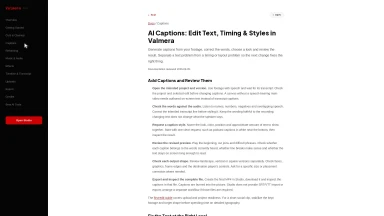
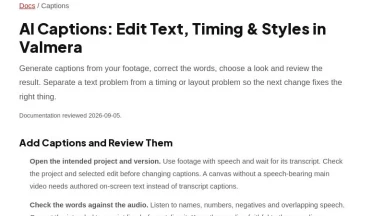
The close-up is an editorial crop of the captured frame. The original recording below shows the complete interaction.
Play the original capture
Run the same test on your own file. Watch it at the width of the intended embed and with the sound off. Check the action, the resulting state and the smallest label the viewer needs. If a wide view hides the result, keep the wide shot for the action and move in after the new state appears.
Start with one launch clip
Make one 20-second landscape MP4 for our product page. Keep a wide shot for orientation, then hold a close-up of the successful result for two seconds. Keep the result label readable in a 384-pixel-wide player without covering it with a caption or placing it against the edge. Show the source and preview times for the action and the result. Ask me to check the preview before exporting.
For a recurring release schedule, request an Enterprise editing quote with your monthly walkthroughs, cutdowns and updates.