Valmera vs Cubix for editing screen and camera demos
Cubix offers AI cleanup and timeline controls for product walkthroughs. Valmera takes a written editing brief and follow-up instructions against a preview. If the presenter covers a button your viewer needs to click, try a timed layout revision with separate screen and camera recordings before choosing either editor.
Valmera publishes this comparison. Cubix’s workflow comes from its documentation, checked November 26, 2026. Valmera Editorial assembled the two measured reference cuts in FFmpeg for buyers to reproduce in either editor.
Run the layout testChoose based on what you recorded
| What you need | Cubix | Valmera |
|---|---|---|
| Edit an existing walkthrough | Cubix describes removing setup, retries and pauses, adding targeted zooms and adjusting the cut on a timeline. | Upload the walkthrough, identify the actions and results the viewer needs to see, and review the AI-edited preview. |
| Move the presenter during a click | Cubix documents editing screen and camera footage on the same timeline and adjusting the framing. Try your two source files to check how precisely the inset can move. | Supply the camera and screen as separate files. Give the agent the exact preview range and the control to keep visible, then inspect the revised MP4. |
| Start from a combined recording | Cubix Capture can record a floating webcam bubble. For an existing combined file, recover the original screen track if the bubble covers a required control. | A combined export contains the overlay as part of the picture. Bring the separate recording if you need the exact screen detail behind it. |
Cubix product demos · Cubix screen recording editor · Cubix Capture · Valmera first-edit workflow
At 2.07 seconds, can the viewer see what to click?
Both 5.70-second reference cuts use the same screen recording, synthetic practice narration and illustrated presenter. Open the two click frames and look for Captions in the sidebar before following the pointer to the result.
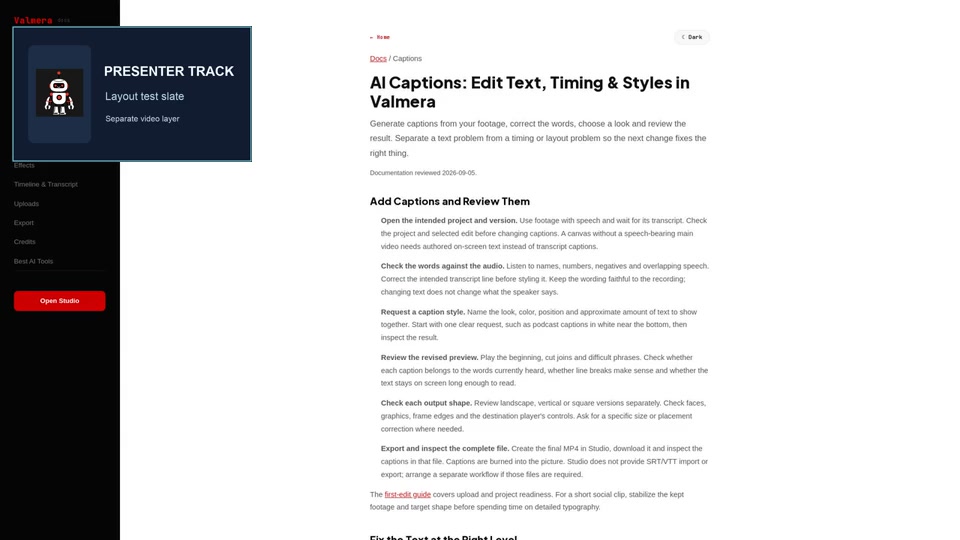
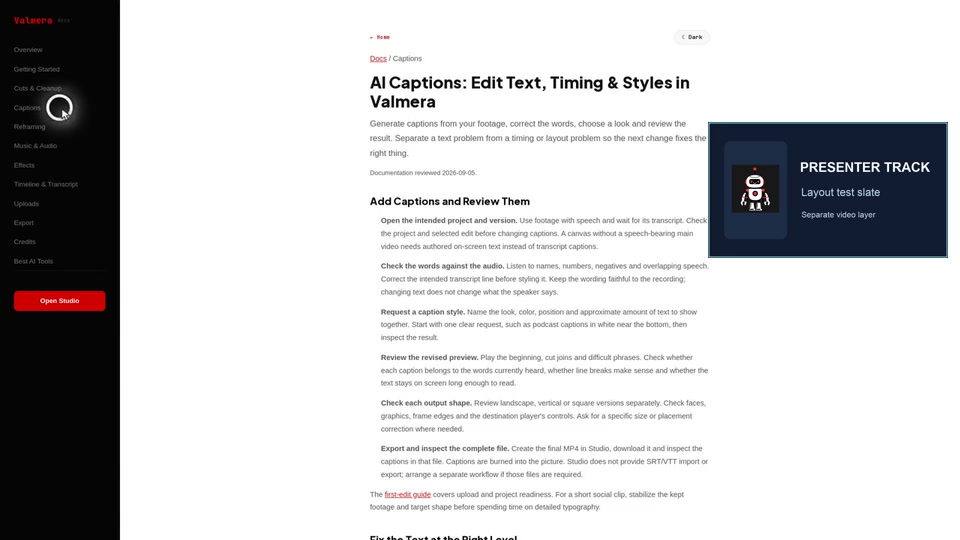
In the sampled click frame, the inset covers the full 64 × 20 pixel control area in the first cut. Moving it changes 1,234 of 1,280 decoded pixels in that area. The edit changes 36 frames from 1.60 to 2.80 seconds, with the end time excluded. The decoded picture outside that range and the decoded audio throughout both cuts match. See the measurements and file hashes.
Run the same edit before choosing a subscription
Download the screen and voice track · Download the silent presenter track
- Make the first cut. Use trim.mp4 as the screen and voice track. Use presenter-slate.mp4 as the silent presenter. Show the presenter full screen through 00:00.40, then in the upper left over the screen through 00:02.80. Show the screen alone from 00:02.80 through the end. Keep the original narration. Show the preview.
- Move the inset. In the current preview, move the presenter inset to the right only from 00:01.60 to 00:02.80. Keep it the same size. Make the Captions link and the pointer click at about 00:02.07 visible. Keep the earlier layout, the full screen after 00:02.80, the original narration and the total runtime.
- Open the exported file. At the click, pause and read the control. Then check the positions just before 1.60 seconds and at 2.80 seconds, listen through the join, and confirm the destination screen remains readable.
·
Keep this tab open to recover the brief after purchase. Add the two source tracks in Studio and review the draft before sending it.
Outsource recurring screen-and-camera demos
For recurring videos, send one screen recording and its separate camera track, the target frame size, the controls that must stay visible, your monthly volume and the first review date. Valmera Enterprise can scope an editing pilot from those inputs.
Prepare an Enterprise pilot request